Fit the key to your voice
Choose any semitone from −6 to +6. The captured setup moves the track down to −2.
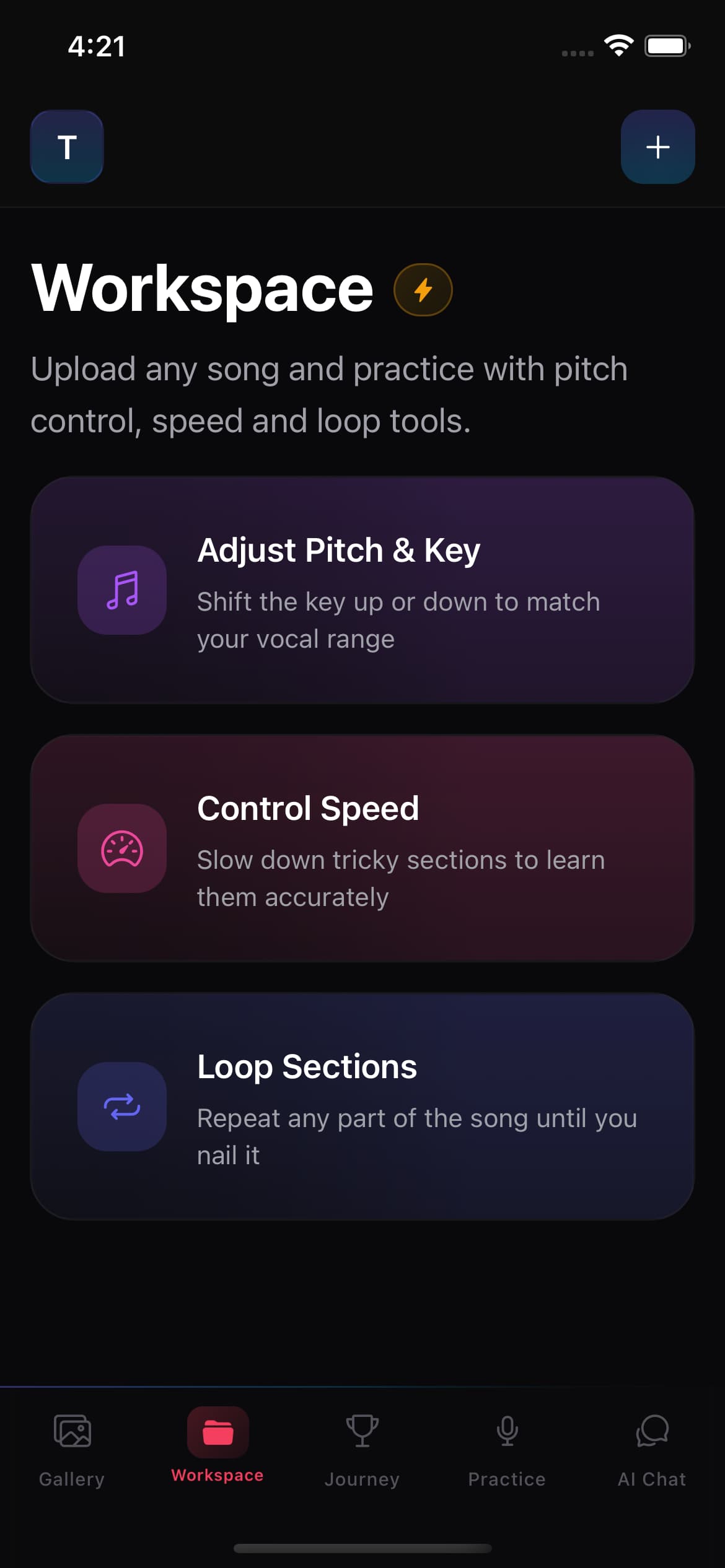
Upload a song, change its key for your voice, slow it down without changing pitch, and loop the section that needs another repetition. Your Workspace keeps the practice settings ready for next time.
13 pitch positions
−6 through +6
13 speed steps
0.70× through 1.30×
Section looping
Choose start and end
Settings retained
Pitch, speed, and loop
Instead of searching for another version, build one focused practice setup around the track you already know.
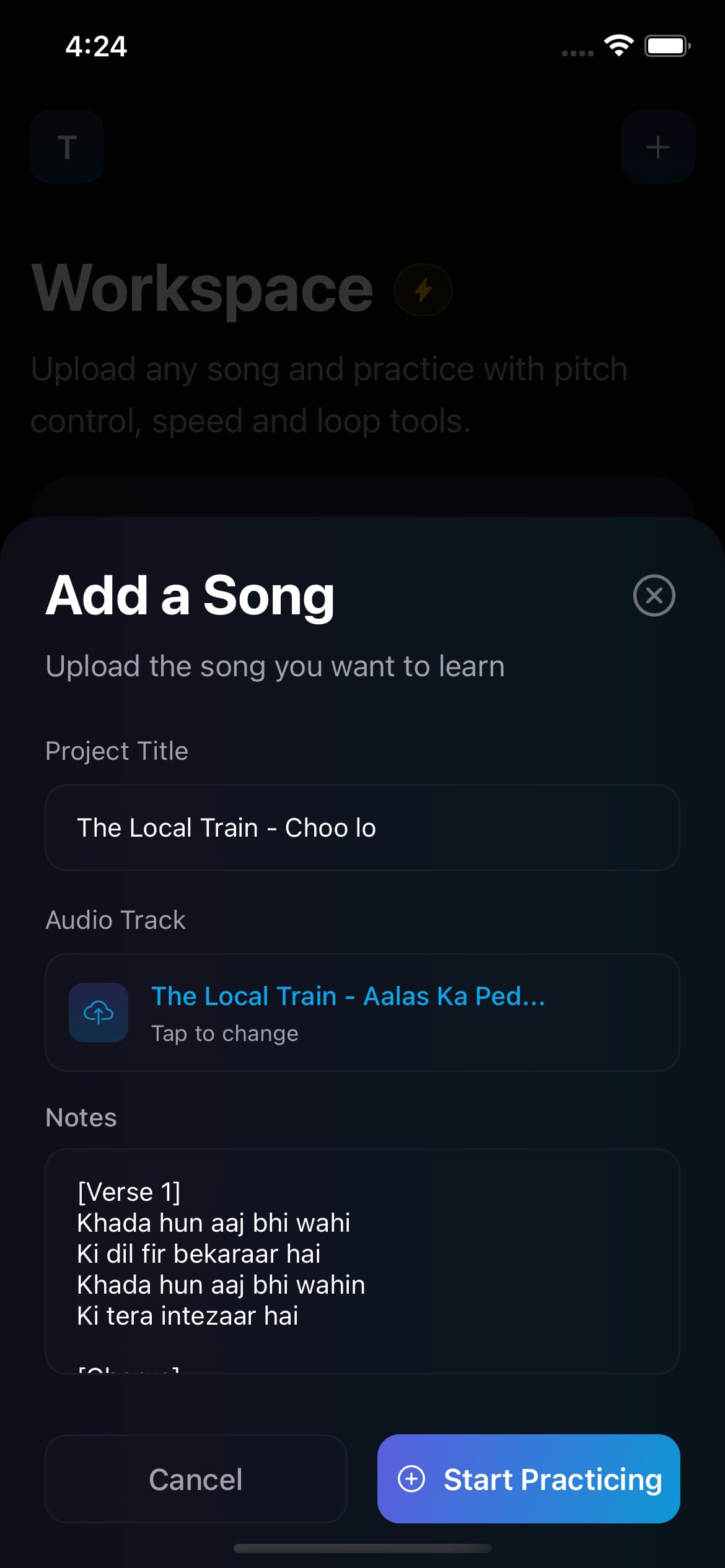
Name the project and upload the audio you want to practise.
Move the song down or up one semitone at a time.
Slow a difficult phrase or raise the speed when you are ready.
Set the start and end of a section, then keep it looping.
Pitch and speed are separate decisions. The timeline and loop tools help you stay on the phrase you are working on.
Choose any semitone from −6 to +6. The captured setup moves the track down to −2.
Move from 0.70× to 1.30× in clear 0.05× steps. This session uses 0.85×.
Seek on the timeline or jump backward and forward by five seconds.
Expand Section Loop, then drag the start and end handles around the passage you need.
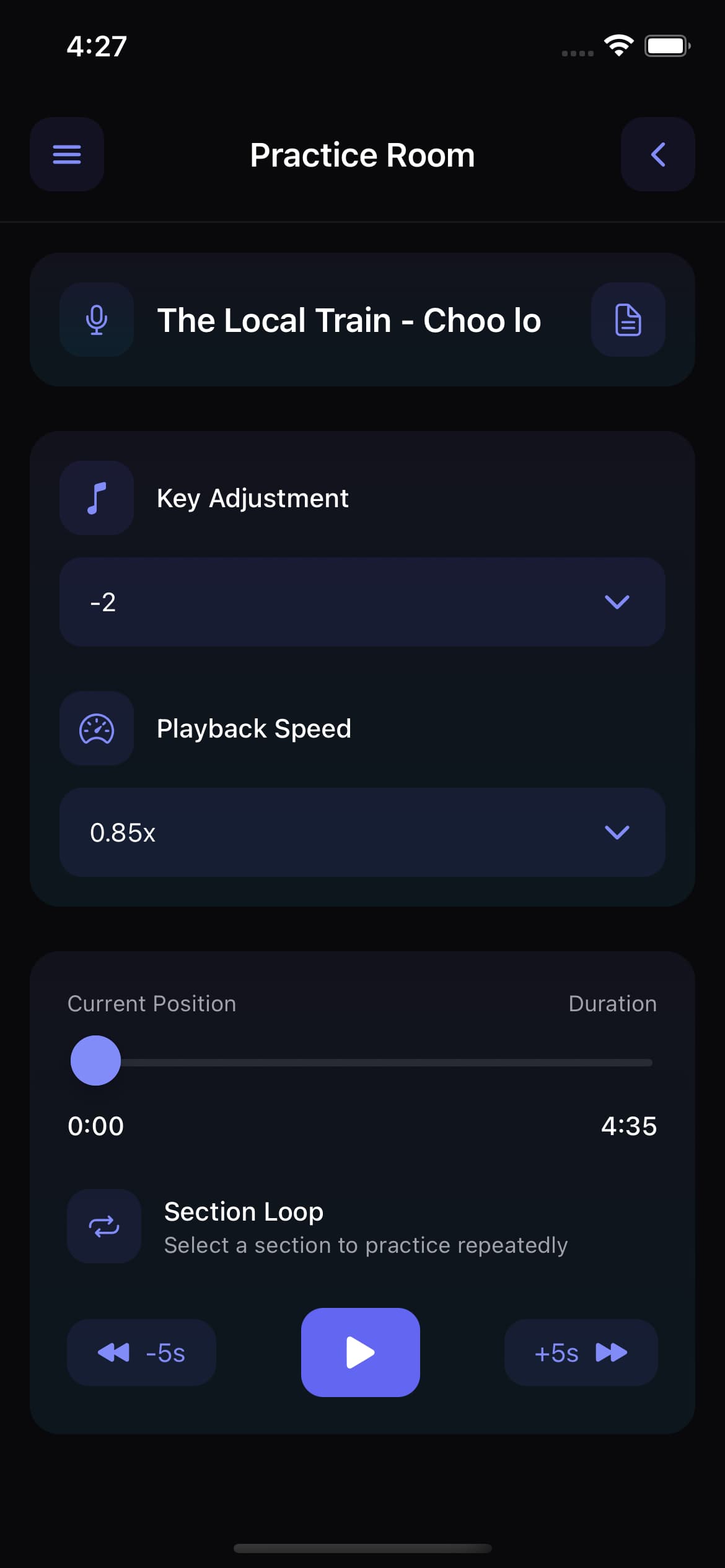
Key −2 · Speed 0.85×
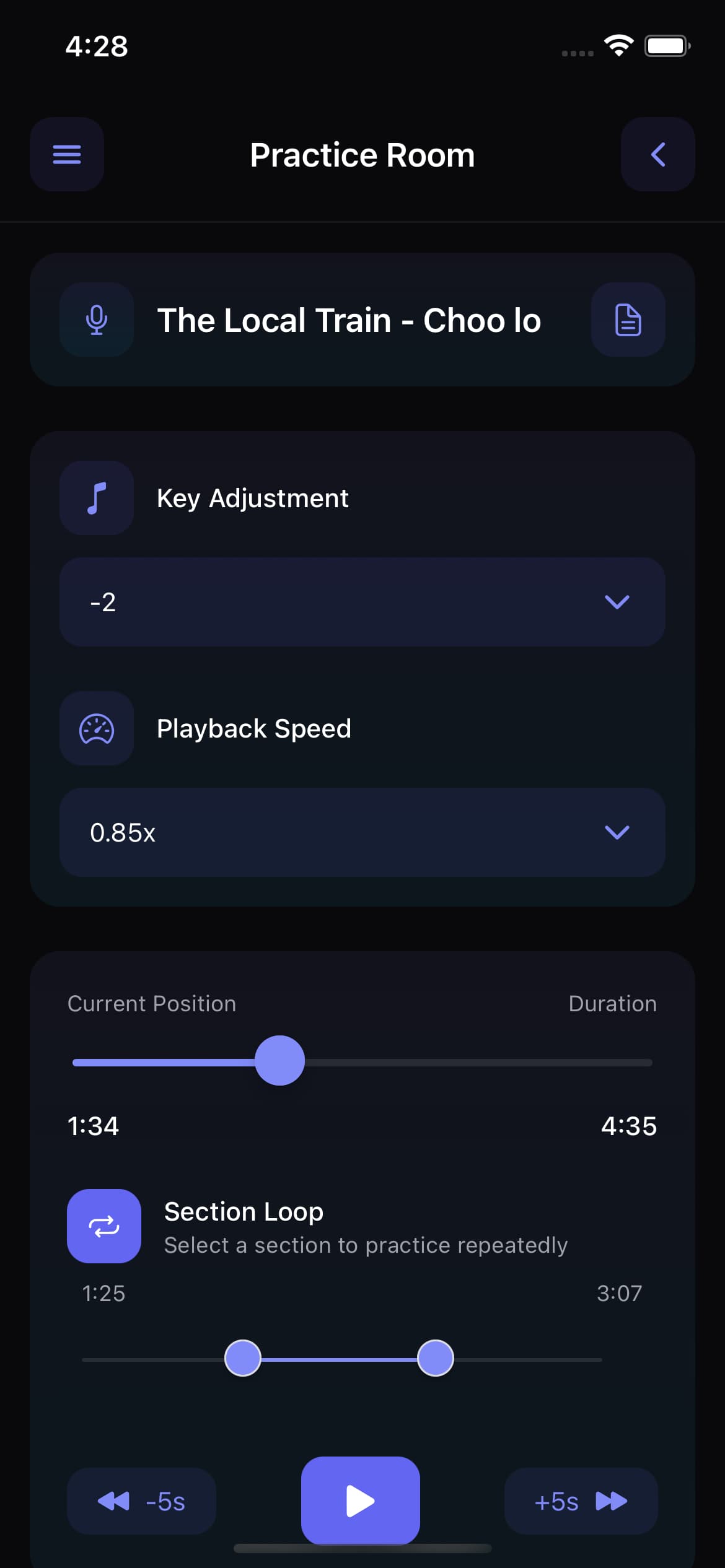
A focused section, ready to repeat
Move through the track or jump backward and forward by five seconds.
Open the saved song text while you work with the practice track.
Keep multiple Workspace projects and return to the one you want to practise.
Use each control independently to build a practical version of the song for your current voice and practice goal.
Upload the audio to a Workspace project, then move the key down or up one semitone at a time. Singers AI provides 13 positions from six semitones down to six semitones up.
Yes. Key and playback speed are separate controls, so you can slow a difficult passage from 1× while keeping the selected song key unchanged.
Yes. Expand Section Loop, set the start and end points around the difficult passage, and repeat that selected section while you practise.
The project retains its selected key, playback speed, and loop range so you can return to the same practice setup later.
Pitch and speed changes create a practice aid. Processing takes time, and the result should be checked with headphones before you build a session around it.
Test difficult passages, compare the whole song, and keep the practice setup that gives you the best complete performance.
Move a track one semitone at a time, shortlist keys with difficult passages, then test the complete song.
Follow a complete practice method: prepare the track in a comfortable key, then verify the notes with the tuner.
Measure your lowest and highest clean notes, then use that span when you test different song keys.
Bring a track into Workspace, adapt the difficult parts, and return to the same settings next time.